

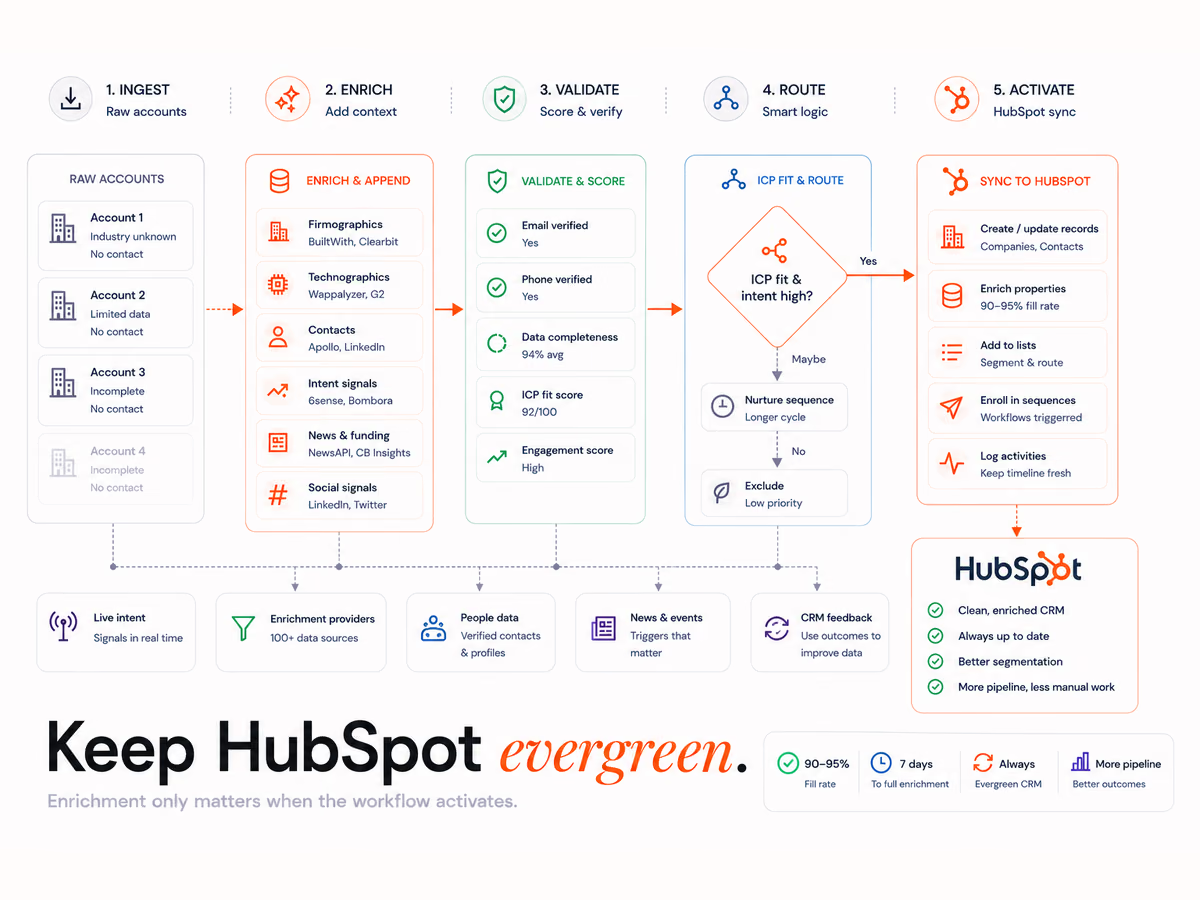
How does the Clay to HubSpot architecture actually work?
HubSpot is your customer relationship management (CRM) system, and Clay sits in front of it as the CRM enrichment layer. Clay pulls in raw contacts and fills gaps from a chain of data sources. It checks each record, removes repeats and picks an owner. Then it writes clean fields into HubSpot, and your sales tools read from there.
- Clay pulls raw contacts from your own lists, LinkedIn and data vendors.
- Each contact runs through a chain of sources, then gets checked, matched and given an owner.
- Clean fields land in HubSpot contacts and companies.
- Sales tools log activity back to HubSpot, and that feeds the next refresh.
The loop matters because people move. The US Bureau of Labor Statistics says median job tenure was 4.1 years in January 2026.
For workers aged 25 to 34, it was 3.0 years. So a contact that is right today will be wrong soon, unless something checks it again.
What do you need before you connect Clay to HubSpot?
You need a HubSpot user who can approve the app, a Clay plan that includes HubSpot, and a clear buyer profile. Decide the fields you will fill before you connect. The profile sets which fields Clay fills, which contacts pass the checks and which keys you match on.
- A HubSpot user who can approve the connection
- A Clay plan that includes the HubSpot actions
- Access to your data sources
- Login details for your sales tools, if they sync too
As of October 2026, the Clay app listing on HubSpot says "No HubSpot permissions required," though Clay "may request additional permissions while connecting." The same listing shows it needs a Clay subscription.
Should you use the native integration or a webhook?
Use the native integration first. The HubSpot listing shows 3 Clay actions: create a record, update a record and look up a record. That covers most syncs with no extra tool. A webhook, or a tool like Zapier, adds a middle step that you must build, watch and fix.
Pick a webhook only when you need a step the native actions do not have. One example is a custom trigger from another system.
How do you set up the Clay to HubSpot integration step by step?
Work through 9 steps in order: map fields, set match keys, build the source chain, add checks, route owners, set sync rules, set a refresh timer, watch the data and run a pilot. Each step guards the next. A clean pilot tells you the build is safe to scale.
Step 1: How do you map properties and objects?
Map the fields HubSpot needs, such as email and company domain. Then add your own fields, like enrichment_status, check_score and source_tag. Do not write Clay data straight into fields reps own, like job title or phone. Use a backup field such as job_title_clay instead.
Step 2: How do you set the dedupe strategy?
HubSpot's guide to duplicate records, updated in October 2026, says it matches contacts on email and companies on domain. Apps write to HubSpot through its application programming interface (API).
The guide says "companies created through API will not be deduplicated by the Company domain name property." Clay is one of those apps. So look up each company in HubSpot first, and update it by its record ID.
For contacts, match on email first. If there is no email match, use a second key, such as LinkedIn URL plus company domain. Clean up company names before you sync, so one firm does not show up 2 ways.
Step 3: How do you build the enrichment waterfall?
Stack your sources from cheapest to dearest: your own CRM data first, then free sources, then paid vendors. Set each paid step to run only when the field is still empty. Then you pay only for real gaps. The same chain drives a Clay lead enrichment workflow when it is tuned well.
Step 4: How do you set verification gates?
Check each record before it reaches HubSpot. Test that the email can get mail, that the domain is set up for email and that the phone number is in the right format. Hold low scores for a person to review. A record that fails stays out of HubSpot.
Step 5: How do you handle routing and ownership?
Give each contact a HubSpot owner based on region, industry or lead source. Clay can look up owner IDs and add them in the sync. Write the rules in a simple table. Set a backup owner for when no territory matches or an owner has left, so no contact lands without an owner.
Step 6: How do you set sync rules and triggers?
Sync one way, from Clay to HubSpot, in most cases. The HubSpot listing warns that with two-way sync you should "review data mappings to avoid overwriting critical information." Set Clay to write only when the target field is empty. Skip the sync when a sales user made the last edit.
Step 7: How do you set the refresh and evergreen policy?
An Evergreen CRM needs a refresh timer, not a one-off clean. Re-check contacts on a set cycle, such as each quarter. Re-check company details on the same cycle. Keep a block list in Clay, so do-not-contact records, bad-fit leads and unsubscribed emails never get filled again.
Step 8: How do you set observability and QA?
Quality assurance (QA) means you watch the data, not just the sync. Track bounce rates, the share of key fields that are filled and any sudden drop in what a source returns. Pull the logs each week. Then you catch a failing source before it fills the CRM with bad data.
Step 9: How do you move from pilot to scale?
Run a pilot on a small batch first. Test the match keys, the sync rules and the checks. Ask sales if the records look right. Then tune the keys, field maps and timer before you run the full database.
How do you keep the CRM evergreen after launch?
You keep it evergreen by refreshing on a timer, not only when a record gets used. A quiet record goes stale just as fast as a busy one. A set loop that fills, checks and logs each record is what holds the data steady over time.
Most teams book a big CRM clean-up once a year. An Evergreen CRM swaps that one big clean for a small check that never stops.
HubSpot now has its own data fill as well. HubSpot's data enrichment guide, updated in July 2026, says "Automatic enrichment settings are turned off by default for both contacts and companies." It also says "Existing data is kept unless you choose to overwrite it." Clay fits the gaps HubSpot leaves, such as your own fields and sources.
Check each new record against the CRM before it goes in. That is how we work: we check every account against your CRM before delivery, so what you receive is genuinely new, not a re-served contact you already own. In one build, the client reported about 99% of the delivered account information was accurate.
Four rules keep the system honest:
- Never overwrite a field without a backup rule.
- Log every sync and every rejected record.
- Refresh on a timer, not only on activity.
- Fill only the fields you use.
Scoring and routing then run on data you can trust, which is the base for signal-based lead scoring.
Which metrics prove the integration is working?
5 metrics show whether the Evergreen CRM is holding: fill rate on key fields, duplicate rate, bounce rate, time to first touch after sync, and the rate at which contacts become deals. Set a target for each in the pilot. Track them weekly, so a slip shows up before sales feels it.
- Fill rate: the share of key fields with a value
- Duplicate rate: the share of records that match another record
- Bounce rate: the share of emails that come back
- Time to first touch: how long a synced record waits for a rep
- Contact to deal rate: how many contacts become deals
The payoff is time to sell. Salesforce's 2026 State of Sales report found "the average seller spends 40% of their time selling." It also found top teams lead on data upkeep: "79% prioritize data hygiene compared with only 54% of underperformers."
Bad data costs money, too. In a 2026 survey of 500 marketers across the US, UK, Brazil, Australia and New Zealand, Validity found that "62% of organizations report losing revenue directly due to poor CRM data quality."
What are the most common Clay to HubSpot mistakes?
The same 5 mistakes come up again and again. Teams overwrite fields reps edited, match on one key, skip checks on free leads, forget to block old contacts and run no refresh timer. Each one quietly harms the CRM. Soon routing and reports stop being worth trusting.
- Overwriting fields reps edited, with no backup rule
- Matching on email alone
- Skipping checks on free leads
- Forgetting to block opted-out contacts
- Running no refresh timer, so the data goes stale
Use HubSpot's own tools to catch what slips through. HubSpot's data quality tools, updated in July 2026, show contact and company duplicates in one view. With Data Hub Professional or Enterprise, duplicate alerts run daily: "Your account is checked every 24 hours."
Most of these mistakes come down to who builds the system. The steps are easy to learn, but the choices in between decide if it works. That is why teams often bring in a Clay workflow specialist for the setup.
Where do the real costs accrue?
Cost is not only data spend. It grows with sync volume, the number of fields you fill, retries on rejected records and how often you refresh. HubSpot also caps how many API calls an app can make. Plan the timer and the field list with care, so a big run stays inside both.
As of October 2026, HubSpot's API usage guidelines cap public apps at "110 requests every 10 seconds" per account. Private apps on Professional get "190 / app" per 10 seconds and "625,000 / account" per day. Split big refreshes into batches, and run them overnight.
- Sync volume: total record updates per day
- Fill depth: the number of fields filled per record
- Retries: re-running rejected records
- Refresh rate: how often the whole base is checked again
A refresh on every field, every week, is what turns a set bill into runaway spend. If you want help sizing the build, talk to our team.
Clay Workflows
Book a 30-minute workflow audit to get a custom enrichment waterfall design, sync rules, and an Evergreen CRM refresh policy for your stack.
FAQs
How do you view duplicate contacts in HubSpot?
Open HubSpot's data quality tools and go to the duplicates view. It lists contact and company pairs that may be the same. You can merge each pair or mark it as 2 different records. Daily duplicate alerts need Data Hub Professional or Enterprise.
How do you fix sync errors caused by non-unique identifiers?
Store each HubSpot record ID in Clay, then update by that ID. HubSpot will not import a row that matches more than one contact. Records with no unique key come in as new records, which makes more duplicates.
How do you keep Clay credit use down on HubSpot updates?
Run each paid step only when the field is still empty. Fill only the fields your team uses, and do not refresh every field every week. On the HubSpot side, its own data enrichment does not use HubSpot Credits, but smart properties do.
Can you build HubSpot lists from Clay data?
Yes. Write Clay data into its own HubSpot properties, such as source_tag or check_score. Then build active lists that filter on those fields. The lists update as Clay refreshes each record.
Does HubSpot's own data enrichment replace Clay?
Not for most teams. HubSpot's enrichment fills set fields like job title, industry and company size from its own dataset. It matches contacts on name and work email, and companies on domain. Clay adds more sources, your own fields and checks before data lands.
Should the Clay to HubSpot sync be one-way or two-way?
Use one-way sync from Clay to HubSpot in most cases. Two-way sync can overwrite fields reps have edited unless every field has a guard. One-way sync, with rules that write only to empty fields, keeps Clay data and sales input apart.