

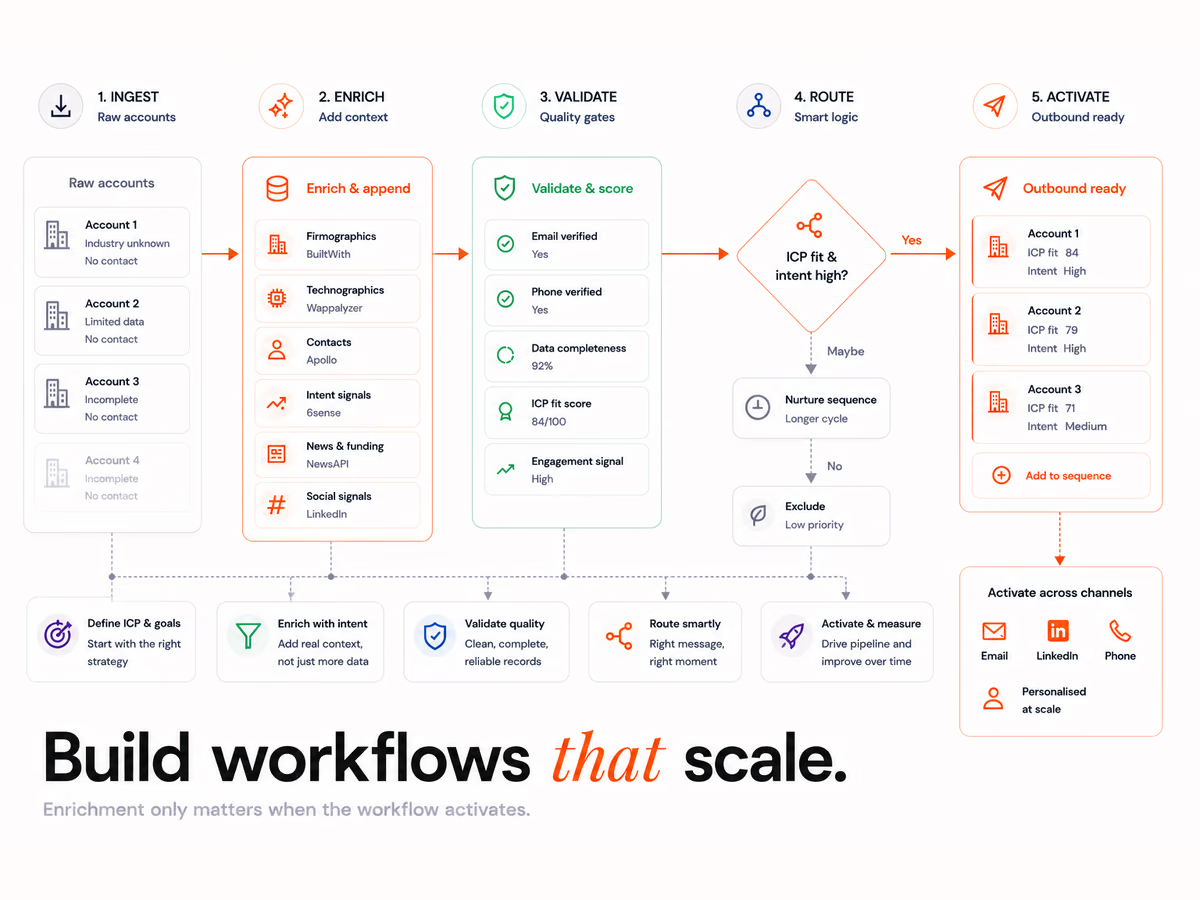
Step 1: How do you plan a Clay workflow before you build it?
Plan a Clay workflow by writing 4 things down before you open Clay: the job the table does, the fields each row must have, a test batch of 10 rows and where finished rows go. That last one is often a customer relationship management (CRM) system or a sending tool. A table built without this plan grows columns nobody uses.
Start with the output and work back. If your sales team needs a verified work email, a job title and a reason to call, those are your 3 must-have fields. Every column you add later should feed one of them.
Plan for data that goes out of date, because people change jobs. The Australian Bureau of Statistics reported in July 2026 that just over 1 million people, or 7.2 per cent, changed employer in the year to February 2026. So add a "last checked" date column to every table from day 1.
Your plan should answer these questions:
- What is the job? For example, "find the sales lead at each target company".
- What goes in? A company list, a CRM report or a webhook.
- What must come out? The fields your team will act on.
- Where does it go? Your CRM, a sending tool or another table.
- How will you know it worked? Pick a check, such as "9 of 10 test rows have a work email".
If the plan is the hard part, a Clay workflow expert can help you scope it.
Step 2: How do you create a Clay table and bring in data?
Create a Clay table by adding a source. In a workbook, click add, pick a source, set it up, check the preview and import it. A source can be a list builder such as Find People, a CRM such as HubSpot, a webhook or a comma-separated values (CSV) file. Give each table 1 source and 1 job.
As of October 2026, Clay's guide to table sources lists 4 kinds: list builders, CRM systems, webhooks and CSV files. To add a source to a table you already have, open the Tools menu and pick Import.
A webhook source lets another tool push rows into Clay as they happen. Our Clay and n8n guide shows how to send rows from n8n.
Watch the size limit. As of October 2026, Clay's guide says "Clay tables have a 50,000-row limit across all plans." When a table hits the limit, Clay stops importing and shows no error. So split big lists into more than 1 table, for example 1 table per region.
Keep companies and people apart. Put companies in one table and contacts in another. That way you look up each company once, not once for every contact who works there.
Our own system starts the same way. It draws on a deduplicated universe of about 115,000 Australian companies, built from four independent sources. One source is never enough on its own.
Step 3: How do you add enrichment columns in Clay?
Add an enrichment column by clicking "Add enrichment", searching for the data you want and picking a provider. Map the input, such as a company domain, to the column. Then choose how it runs. An enrichment is a column that looks up facts, such as company size or a work email, for every row in the table.
As of October 2026, Clay's enrichments guide explains the Auto-run switch. When it is on, the enrichment re-runs each time its inputs change. When it is off, the column runs only when you tell it to.
Keep Auto-run off while you build. Each run costs credits, so a half-built table on Auto-run spends money on rows you will throw away.
Add columns in this order:
- Company facts first. Domain, size, industry and location.
- People second. Name, job title and LinkedIn page.
- Contact details last. Work email, then a check that the email is real.
To fill one field from several providers in turn, use a waterfall. Our Clay lead enrichment workflow guide covers how to order providers and measure fill rate.
Step 4: How do you add AI and Claygent columns?
Add an AI column when the answer sits on a web page, not in a database. Claygent, Clay's AI web research agent, reads pages for each row and writes back the fields you ask for. Give it a task, the columns to read, the exact fields to return and a "Not found" fallback for pages with no answer.
Clay's Claygent prospect research guide, published in April 2026, sets 3 rules. Run other enrichments before the agent, not after, so it has context. Ask for exact fields, for example a yes or no answer, 1 sentence of evidence and the source page. Then test on 2 or 3 rows before you run the full list.
Always ask for the source link. AI tools often sound sure when they are wrong. In a 2025 study, Columbia's Tow Center found that 8 AI search tools gave wrong answers to more than 60 percent of 1,600 queries. A source column lets a person check any answer in seconds.
A good AI column returns:
| Field | What it holds | Example |
|---|---|---|
| Answer | A short, fixed choice | yes, no or Not found |
| Evidence | 1 sentence from the page | "The careers page lists 3 sales roles." |
| Source link | The page the answer came from | The company careers page |
Step 5: How do you control which rows a column runs on?
Control which rows run by adding a run condition to the column. Open the column's settings, go to Run settings and add a condition. The column then runs only on rows that pass the test, such as rows with a work email, and skips the rest. This keeps bad rows out of your CRM.
As of October 2026, Clay's conditional runs guide shows the idea with plain tests. One example runs a CRM upload only when the email field is not empty. Another sends a row to a sequence only when the lead score is over 80 and the industry is software as a service (SaaS).
Use run conditions at 3 points:
- Before a paid lookup. Only find an email for rows where the job title matches your buyer.
- Before AI research. Only run Claygent when the company domain is filled in.
- Before anything leaves Clay. Only send rows with a checked email and a "last checked" date.
Write each rule in plain words in the column name or a note. When a row is skipped, Clay shows that the run condition was not met. A note tells the next person why.
Run conditions also cut credit spend, because a skipped row does not run the lookup. For plan prices and credit costs, see what Clay costs to run.
Step 6: How do you test, schedule and send rows out of Clay?
Test on 10 rows, fix what breaks, then switch on the schedule. Turn on Auto-run for each column, set the source to run on a schedule and add the step that sends rows out, such as a CRM update or a sending tool. Check the first full run by hand before you leave it alone.
Check every row against your CRM before it goes out. Our own engine narrows about 115,000 companies to roughly 50 net-new accounts a month, each checked against the client CRM. When we built a signal engine for one client, the client's business development team rated delivered lead quality about 8.5 out of 10.
For a play that runs on each new record, look at Clay Workflows. Clay's August 2026 Workflows post says it is in open beta for all customers. It says "every enrichment and action from tables works inside a workflow". You can also import a table to start a workflow, so nothing you build in Steps 1 to 5 is wasted.
Before you switch it on, run this last check:
- 10 test rows look right, with a source link on every AI answer.
- Auto-run is on only for columns you have tested.
- Run conditions guard every paid lookup and every export.
- The "last checked" date fills in on each run.
If you want help with the build, you can talk to our team.
Clay Workflows
Get a second pair of eyes on your Clay build. We review your table plan, AI columns and run conditions before you switch on the schedule.
FAQs
What does Clay do for GTM teams?
Clay helps go-to-market (GTM) teams build lists of companies and contacts and fill in the facts they need. It pulls rows in from sources, looks up data from many providers and uses AI to research each row. Then it sends clean rows to a CRM or a sending tool.
Do you need to code to build a workflow in Clay?
No. You build a Clay table by adding a source and columns from menus. Run conditions are short rules, such as "email is not empty". Some advanced steps use code, but most first builds need none.
Should you build in a Clay table or in Clay Workflows?
Start with a table when you are building a list and want to check it row by row. As of October 2026, Clay Workflows is in open beta, and it suits a play that runs on every new record. Clay lets you import a table to start a workflow, so a table is a safe first step.
How many rows should you test first?
Test on about 10 rows. That is enough to see empty fields, wrong matches and AI answers with no source. Fix those, then run the full list.
What breaks a Clay workflow most often?
3 common mistakes break builds. Auto-run is left on while you build, so credits go on rows you delete. Columns run on rows that are not ready. And nobody checks rows against the CRM, so the team gets contacts it already owns.